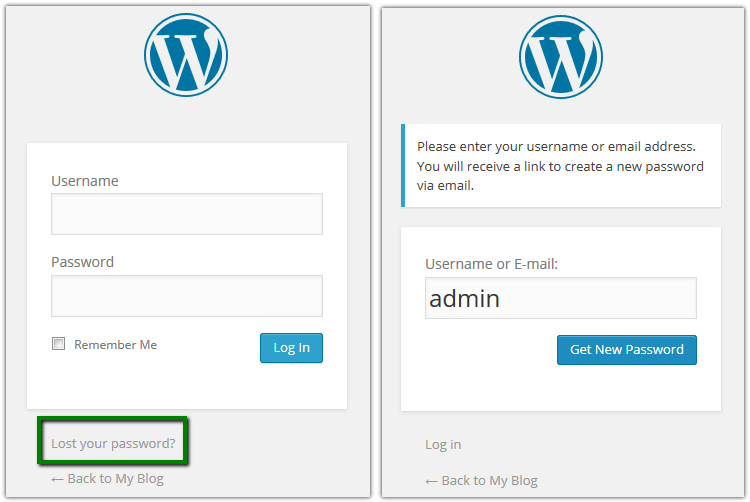
2) Click on theLost your password?option, fill out the username or email address >Get New Password as shown below.
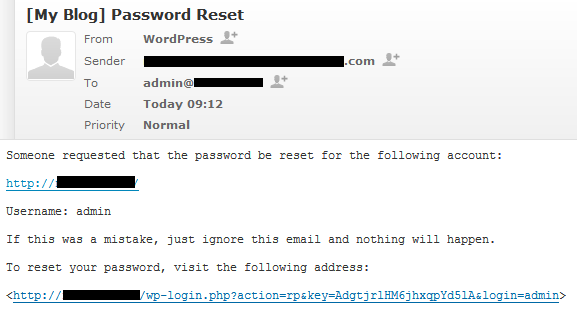
3) Log into your email account, which is set as your administrative WordPress contact.
You can find the email message with the password reset URL. Click on the password reset URL.
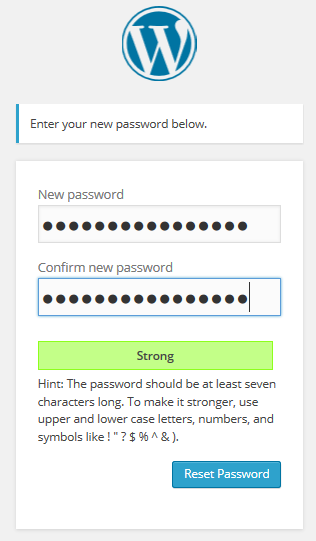
4) Enter your new strong password twice on the opened page > Reset password
Option 2: Using Softaculous Apps Installer
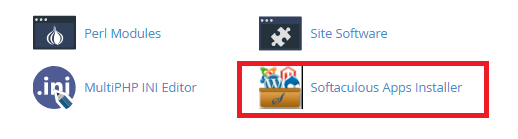
1) Login to cPanel and click on Softaculous Apps Installer.
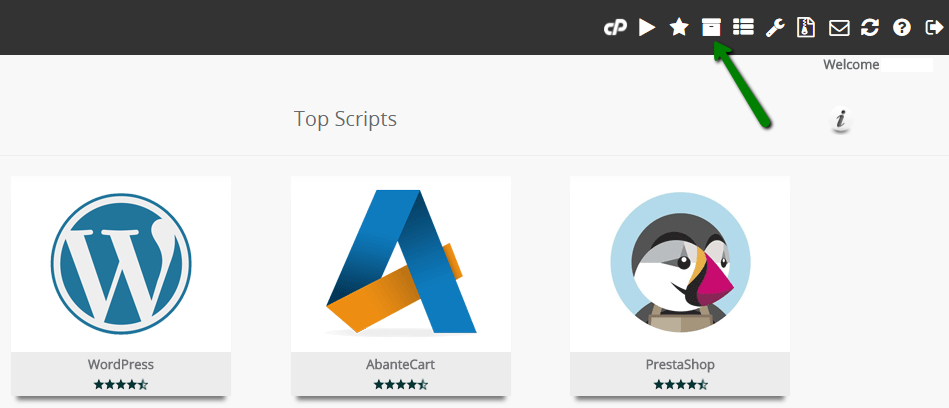
2)In the Softaculous interface find "All Installations" icon at the top right corner:
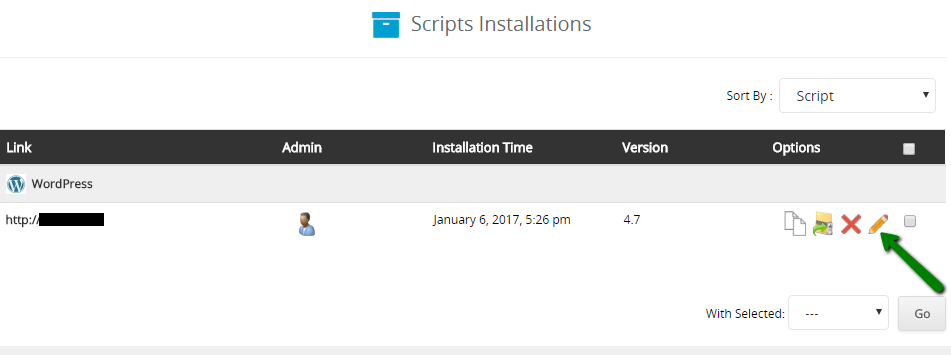
3)In this menu you will see Scripts Installations list. Select the one you need to change the admin password for and click onEdit Details(pencil icon) next to it:
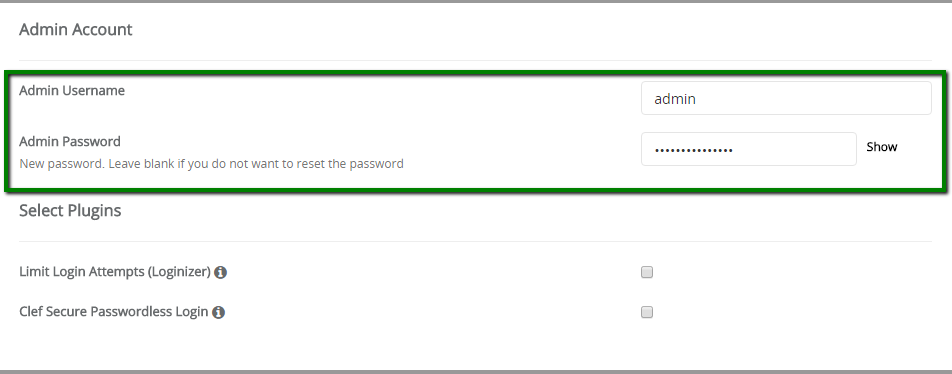
4) Next you will see installation details page. Scroll down to Admin Accountsection. Here you need to enter your current username and the new password inAdmin Passwordfield:
5) Once done, scroll down to the bottom of the page and hit Save installation detailsbutton.
6) After that you will receive the message about the successful update.
7) Kindly feel free to log in to WordPress admin panel using the new password.
Option 3: Reset the Password via phpMyadmin
If you have no access to the email account linked to your administrative dashboard, you can reset your password via MySQL database & phpMyAdmin.
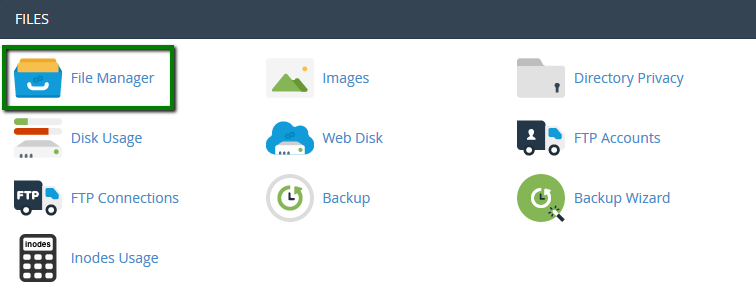
1) Login to your cPanel . Under Files section, click on File Managerand navigate to the document root of your WordPress website:
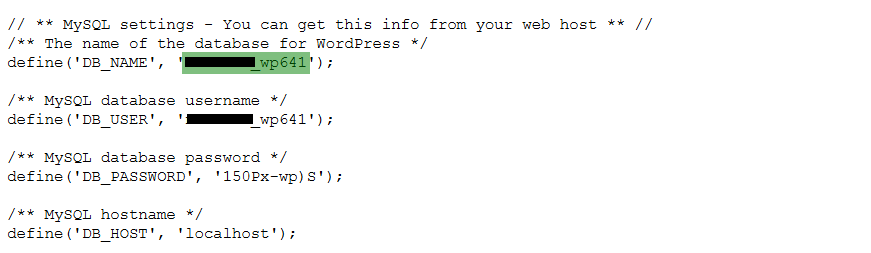
2) To check what database is used for your WordPress website, open the wp-config.phpfile.
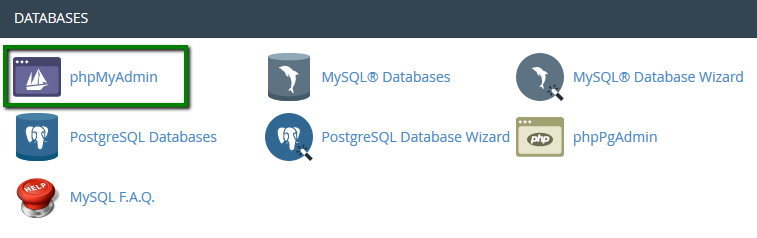
3) Go to cPanel > Databasessection >phpMyAdmin
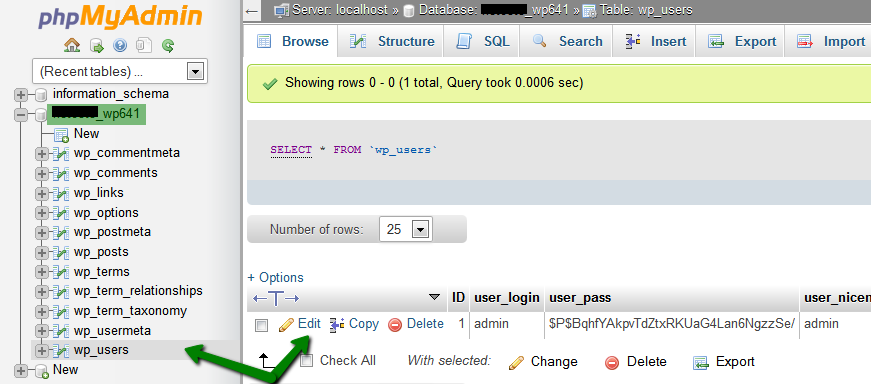
4) Select the database in question, tablewp-usersand click onEditnext to the admin user.
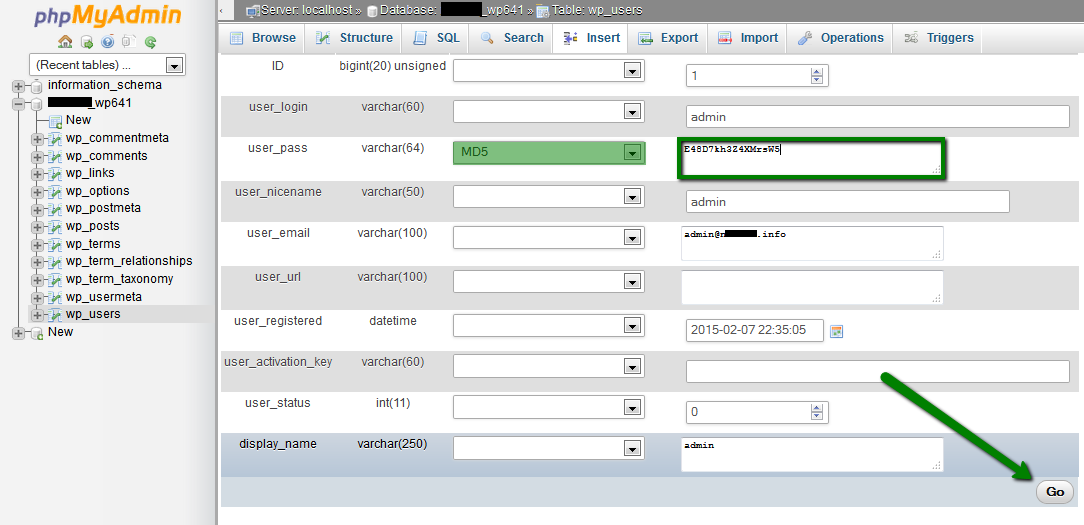
5) On the next page, type in your new strong password into the user_pass box, select MD5in theFunctioncolumn and clickGo.
With these 3 methods, you can now go back to the WordPress dashboard page and try to log in with the new password.